You want a simple way to make sure training hours go from ChildCareEd into Minnesota's Develop system without extra work. This guide helps you, step by step. Use your #Develop ID in your #ChildCareEd account so hours post to the #Registry and meet #Minnesota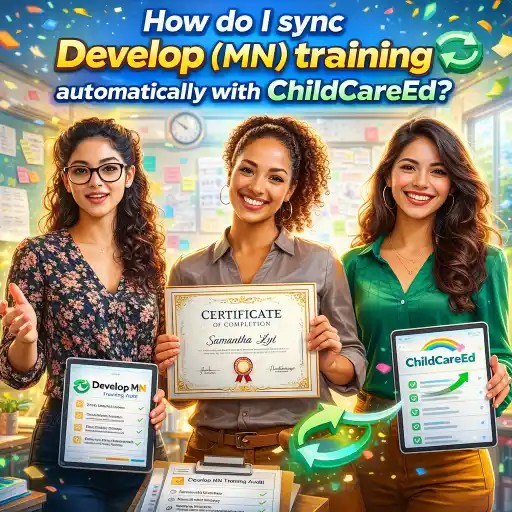 #training rules. State requirements vary - check your state licensing agency.
What does "automatic training sync" mean, and why does it matter?
Automatic training sync means ChildCareEd sends course completions straight to the Minnesota Development Registry for you. That saves time and keeps staff records correct. Why it matters:
- 🧾 It reduces paperwork. Your staff gets credit without you uploading each certificate.
- 🔁 It helps staff renew credentials, like CDA or annual hours, on time.
- ✅ It lowers the chance of missing required topics needed for licensing.
When ChildCareEd reports hours, they usually upload attendance weekly — see the ChildCareEd FAQ. ChildCareEd is a Develop-approved sponsor in Minnesota, so many courses count for state credit as explained in A Complete Guide to ChildCareEd Courses for Providers in Minnesota and the state portal Minnesota Approved Trainings. Automatic sync matters because it helps directors keep their programs compliant and staff focused on kids, not forms.
How do I set up ChildCareEd to report to the Develop Registry?
Follow these numbered steps. Each step is quick and will get your program ready to sync training automatically.
- 🔎 Know the rule: confirm your training needs and develop Registry ID. Read State-Approved Trainings in Minnesota to match topics and hours.
- 🧑💻 Step 1 — Create or log into your ChildCareEd account.
- 📌 Step 2 — Add each staff member’s Develop Registry ID to their ChildCareEd user profile. This is the single most important step for automatic uploads. See our guide to navigating your ChildCareEd user profile for step-by-step screenshots on where to add Develop IDs.
- 📚 Develop-approved online training: A practical starting point for staff is ChildCareEd's Health and Safety Orientation
 Buy Now
 $55.00$45.00 — a 6-hour online course that covers core health and safety standards and counts toward Minnesota licensing requirements. Because ChildCareEd is a Develop-approved sponsor, Completions sync automatically to the Registry once staff develop IDs and are linked in their profiles. - ✅ Step 4 — Complete courses. ChildCareEd uploads attendance weekly and sends completions to Develop; allow a few business days for posting, as noted in the FAQ.
- 📂 Step 5 — Save PDFs of certificates and check the Develop Registry to confirm hours posted.
Tip for directors: use group admin or bundle pages to enroll teams quickly — see Which Minnesota training bundle is right for my child care team?.
What common mistakes happen, and how do I fix sync problems?
Here are mistakes we see and clear fixes so you don’t lose hours:
- 😕 Mistake 1 — Staff forgot to add their Develop ID before taking the course.
- Fix: Add the ID to the profile, then contact ChildCareEd support; the provider uploads attendance weekly and can match records. See FAQ.
- 📄 Mistake 2 — Lost or missing certificates.
- Fix: Download certificates when they appear by email and keep a folder. If missing, request a duplicate from ChildCareEd (fees may apply) per their policy.
- ⚠️ Mistake 3 — Course not Develop-approved.
- Fix: Choose courses listed for Minnesota in the ChildCareEd Minnesota pages to be sure they count: MN trainings.
Quick troubleshooting steps (do these in order):
- 🔁 Wait 5 business days for a weekly upload.
- 📥 Confirm staff Develop IDs are correct in ChildCareEd profiles.
- ✉️ If still missing, email ChildCareEd support with the staff name, course name, and completion date — include the certificate PDF if you have one.
FAQ (short):
- Q: How fast do hours post? A: ChildCareEd uploads weekly; allow 5 business days. See FAQ.
- Q: What if I need proof today? A: Download the course certificate email PDF; keep it in staff files.
- Q: Can a director add IDs for staff? A: Yes — use group admin tools or ask staff to add and confirm their Develop ID.
How can program leaders use bundles and admin tools to keep staff records current?
Leaders can save time and money by planning training for the whole team. Here’s a step plan:
- 📦 Choose a bundle that matches your staff role and annual hours. ChildCareEd offers MN bundles and career programs — read this guide and browse the MN course catalog.
- 👥 Use Group Admin to enroll multiple staff and collect Develop IDs before training starts.
- 🗓️ Make a calendar: spread courses across the year so staff learn steadily, not all at once.
- 🧾 Keep two records: the Develop Registry entry and your own program file with the certificate PDFs.
- 💸 Watch for free or low-cost options on ChildCareEd’s resources page to lower costs: Free courses.
- Minnesota-specific compliance course: Family child care providers should also consider ChildCareEd's Family Child Care Health Essentials Buy Now $16.00 — a 2-hour online course built specifically for Minnesota providers. It covers state health and safety compliance requirements and posts directly to Develop, making it an easy, low-cost way to close a documentation gap before an audit.
Why it helps: consistent training keeps classrooms safe and improves child outcomes. Use the Develop-approved ChildCareEd trainings to keep audits simple and staff supported. And remember: state requirements vary - check your state licensing agency when you plan.
Conclusion
Automatic sync between ChildCareEd and the Minnesota Development Registry makes tracking easier for busy directors. Do these 3 things to get started:
- 📝 Collect and add each staff member’s #Develop ID to their ChildCareEd profile.
- 📚 Enroll staff in Develop-approved courses or bundles from ChildCareEd.
- 🔍 Check the Develop #Registry after weekly uploads and save certificates for your files.
Need help? Start with the ChildCareEd Minnesota pages and FAQ: Minnesota Approved Trainings, Complete Guide, and Frequently Asked Questions. You’re doing important work for children and families — syncing your training correctly makes your job a little easier and keeps your program in good standing.
- 45 Hour Child Growth and Development
- CDA Preschool Credential with Portfolio Review
- Birth to Five CDA Credential with Portfolio Review
- CDA Family Child Care Credential with Portfolio Review
- CDA Bridge Bundle: Preschool
- CDA Infant/Toddler Credential with Portfolio Review
- CDA Bridge Bundle: Family Child Care
- CDA Bridge Bundle: Infant/Toddler
- Texas Director Credential
- 😫🧸 ¿Qué hacer cuando un bebé no quiere dormir la siesta en el aula?
- 👶 ¿Cuáles son las proporciones y grupos requeridos en Dakota del Norte? 🏫
- Cómo Abrir Una Quardería En Casa Sin Dinero?
- Recursos en Español sobre el Sueño Seguro del Bebé
- Capacitación en Salud y Seguridad Preventiva en Línea para Proveedores de Cuidado Infantil
- Cómo Empezar una Guardería en Casa: Requisitos y Pasos
- Lista para Abrir una Guardería en Casa en Virginia: Cómo Empezar
- Lista para Abrir una Guardería en Casa en Carolina del Norte: Cómo Empezar
- Lista para Guardería en Casa en Illinois: Cómo Iniciar una Guardería en el Hogar
- Lista para Guardería en Casa en Texas: Cómo Iniciar una Guardería en el Hogar
- Capacitación Previa al Servicio para Proveedores de Cuidado Infantil en Dakota del Norte
- How do I sync Develop (MN) training automatically with ChildCareEd?
- How does ChildCareEd help Minnesota childcare providers complete their annual training hours online?
- How can ChildCareEd help Minnesota childcare workers complete all Develop Registry hours entirely online?
- How can ChildCareEd help Minnesota childcare directors in small towns manage staff training with no budget?
- How Can Minnesota Family Childcare Providers Find Affordable CCAP-Approved Online Training Courses?
- How can I complete my Minnesota childcare training hours online through the Develop Registry?
- What Is Minnesota's 40-Hour Child Care Director Training and How Do I Finish It?
- Cómo simplificar la capacitación para sus empleados de daycare
- How do I set up my Develop Registry profile for Minnesota providers?
